Category: Pricing & Profitability | Suggested read time: 8 minutes
Quick Answer: What Controls the Price of a Job?
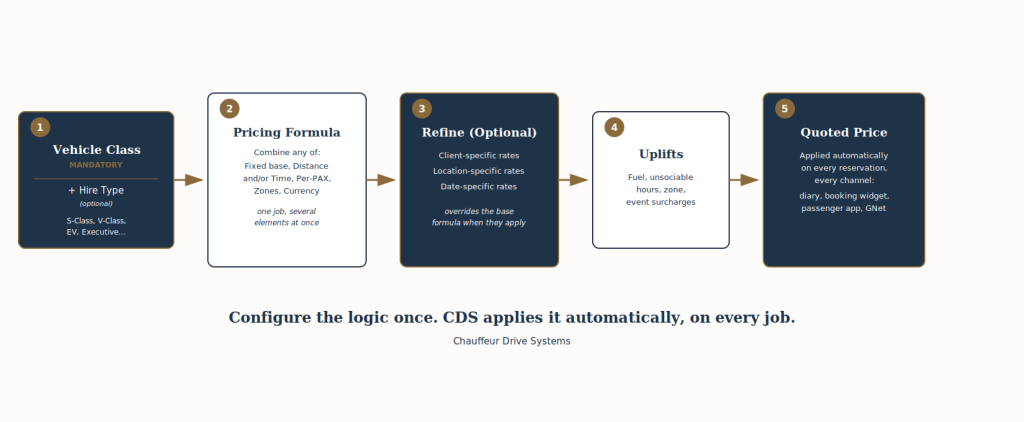
Every quoted price in CDS starts with the Vehicle Class being booked, the one mandatory parameter behind every fare. From there, an optional Hire Type, a Pricing Formula, any client, location, or date-specific refinements, and any Uplifts all work together. Set these up once, and every reservation from every channel, the diary, the online booking widget, the passenger app, or CDS Connect, prices itself correctly, automatically.
Why This Matters More Than It Sounds
A lot of chauffeur pricing tools ask you to pick a single pricing type for a service, hourly, or per passenger, or distance, or fixed, and stick to it. That works fine until a real booking doesn't fit neatly into one box. An airport transfer that's fixed for the first three passengers but needs a per-seat charge after that. A wedding charter that's hourly but also needs a fixed venue surcharge. A corporate account that prices by distance but with a different currency to your standard rates, or a client who simply has their own negotiated rate regardless of the standard formula.
CDS Pricing Formulas are built to combine elements rather than force a single choice. A base fixed price, a distance element, a time element, per-passenger pricing, and zone-specific rates can all sit inside the same formula, in whatever mix your operation actually needs. On top of that, pricing can be refined further for a specific client, a specific location, or a specific date. You are not limited to picking one pricing type per service. You are building the exact pricing logic your business runs on.
“Operators don't price like a spreadsheet dropdown. Airport runs, weddings, corporate accounts, they all have their own logic, and CDS was built so you can configure that logic exactly as it exists in your business, not force it into a single category.”
— The CDS Team
How It All Fits Together
| Element | What It Is | Example |
|---|---|---|
| Vehicle Class | Mandatory. The core parameter every formula is built on | S-Class, V-Class, EV, Executive |
| Hire Type | Optional. The service being sold | From Airport, Point-to-Point, Wedding, Charter |
| Pricing Formula | The calculation logic attached to that Vehicle Class (and Hire Type, if used) | Base fixed price + per-passenger overage + zone rate |
| Refinements | Optional overrides for specific scenarios | Client-specific rate, location-specific rate, date-specific rate |
| Uplifts | Automatic surcharges layered on top | Fuel, unsociable hours, event dates, parking |
When a reservation is booked, whether that's your dispatch team on the diary or a client through the online booking widget, CDS automatically applies the correct Pricing Formula for the Vehicle Class selected, checks for any client, location, or date-specific refinements, and applies any Uplifts that should fire. Nobody has to remember which formula goes with which service. It's already configured.
Step 1: Start With Vehicle Class
Vehicle Class is the one mandatory parameter behind every fare in CDS. Every Pricing Formula is built against a Vehicle Class, S-Class, V-Class, EV, Executive, or however you categorise your fleet, so pricing always reflects what the client is actually being driven in.
Hire Type sits alongside Vehicle Class as an optional second parameter. Many operators use it to separate services like From Airport, Point-to-Point, Wedding, or Charter, but it isn't required. A perfectly valid setup can price purely by Vehicle Class if that's all a business needs.
Step 2: Choose How the Job Should Be Priced
With the Vehicle Class (and Hire Type, if used) in place, decide which pricing elements the formula actually needs. Unlike a single dropdown choice, you can combine more than one:
- Fixed — a set price for the job, ideal for predictable routes like airport transfers
- Distance — calculated per mile or kilometre travelled
- Time — calculated per hour, ideal for as-directed and charter work
- Per-Passenger — a base price for up to a set number of passengers, then a flat rate per additional seat (using the PAX Included and Price per PAX fields)
- Zone — rates tied to specific geographic areas, such as airports or city centres
Most operators find one or two elements cover a given setup. The flexibility is there for the jobs that don't fit a single pattern, without needing a workaround.
Step 3: Build the Formula
Once you know which elements are needed, build the Pricing Formula itself. Set your base rate, add a distance and/or time component if required, and set PAX Included and Price per PAX if the service should charge more for larger groups. If you operate across territories or client accounts that need different currencies, assign the currency for that formula directly. Zones can be added or removed from a formula without having to delete and rebuild it.
Example: An S-Class From Airport formula might use a fixed base price for up to three passengers, a Price per PAX charge for each passenger beyond that, and a zone rate for a specific airport terminal, all in one formula.
Step 4: Refine With Client, Location, or Date-Specific Rates
The standard formula won't always be the final word on price, and CDS allows for that. Where a client has a negotiated rate, a specific pickup or drop-off location needs its own pricing, or particular dates (a busy event weekend, for example) should be priced differently, these refinements sit on top of the base formula and take precedence when they apply. The underlying formula stays untouched for every other booking.
Step 5: Layer in Automatic Uplifts
With the formula and any refinements in place, add any Uplifts that should apply automatically, fuel surcharges, unsociable hours, event dates, parking, or client-group rates. Uplifts sit on top of the Pricing Formula rather than inside it, so you can update a surcharge across every affected Vehicle Class or Hire Type without touching the underlying formula at all.
We've covered Uplifts in detail in a previous post, including how to allocate surcharges directly to driver payment and how CDS resolves priority when more than one uplift could apply to the same job. Worth a read if you haven't already configured yours.
Step 6: Assign the Formula
The final step connects everything. Attach the completed Pricing Formula to the relevant Vehicle Class, and Hire Type if you're using one, and from that point forward, CDS applies it automatically wherever that combination is selected, no manual selection needed at the point of booking, no risk of the wrong rate being quoted by mistake.
Common Configurations at a Glance
| Vehicle Class / Hire Type | Formula Elements | Why |
|---|---|---|
| S-Class, From Airport | Fixed + Per-Passenger + Zone | Predictable base rate, fair charge for larger groups, terminal-specific rates |
| Executive, Point-to-Point | Distance and/or Time | Price reflects the actual route driven |
| V-Class, Wedding / Event Charter | Time + Fixed | As-directed hours plus a set venue or package charge |
| S-Class, Corporate Account | Fixed or Distance/Time + Currency + Client-specific rate | Negotiated flat rates, priced in the client's own currency |
| Any class, Holiday Shuttle | Per-Passenger | Price scales fairly with group size |
Mistakes Worth Avoiding
- Attaching a generic formula to a Vehicle Class or Hire Type that actually needs its own dedicated pricing logic
- Creating a new Hire Type when only the Pricing Formula has changed, updating the existing formula keeps your Hire Type list clean
- Forgetting to set a currency on formulas used by international or multi-territory accounts
- Leaving Uplifts unassigned to new Vehicle Classes or Hire Types, a fuel or unsociable hours surcharge only fires if it's linked
- Building a client, location, or date-specific refinement when a change to the base formula would actually be simpler and easier to maintain
Test Before It Goes Live
Before a new or updated Pricing Formula goes into daily use, run a sample quote through it. Confirm the correct Vehicle Class is selected, the right formula elements are applying, any client, location, or date-specific refinements are firing correctly, and the final price looks correct once any Uplifts are included. A few minutes of testing avoids a quoting error reaching a client.
Review as Your Operation Changes
Pricing isn't something to set once and forget. As fuel costs shift, new services launch, or client accounts are won, revisit your Pricing Formulas, Vehicle Classes, and Hire Types to make sure they still reflect how your business actually prices work. Keeping this organised means every reservationist, on every channel, quotes consistently.
If you'd like a walkthrough of Pricing Formulas for your own setup, our free weekly two-hour training bootcamps cover this in detail, and our team is always happy to help you build out a configuration for a specific service.
Always building, always evolving